Using the Voice Blender
The Voice Blender is a unique feature in Applio that allows you to fuse two existing voice models into a single new model. This can be a fun way to experiment and create new, unique voices.
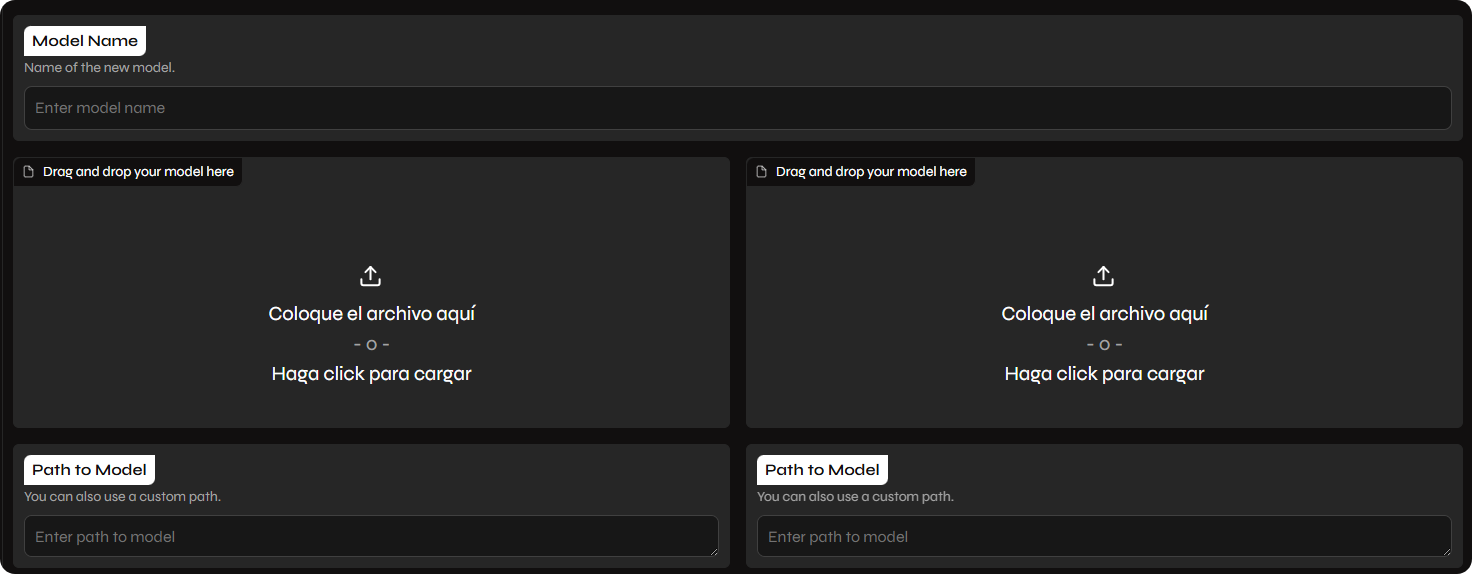
How to Use the Voice Blender
Section titled “How to Use the Voice Blender”- Go to the Voice Blender tab in the Applio interface.
- Enter a Name: Give your new, blended model a unique name.
- Select Model A: Drag and drop the
.pthfile for your first model into the “Model A” box. - Select Model B: Drag and drop the
.pthfile for your second model into the “Model B” box. - Adjust the Blend Ratio: Use the slider to adjust the blend ratio between the two models. A value of
0.5will create an even blend, while a value closer to0will favor Model A, and a value closer to1will favor Model B. - Fuse: Click the Fusion button to create your new model.
Your new blended model will be saved in the Applio/logs directory and will be available for use in the Inference tab.
Tips for Best Results
Section titled “Tips for Best Results”- Experiment: The best way to get interesting results with the Voice Blender is to experiment with different combinations of models and blend ratios.
- Use Similar Models: You’ll often get the best results when blending models that have similar vocal characteristics.
- Start with a 50/50 Blend: A good starting point is to set the blend ratio to
0.5and then adjust from there.