Reporting Errors and Common Issues
If you encounter an error while using Applio, this guide will help you report it effectively and find solutions to common problems.
How to Report an Error
Section titled “How to Report an Error”Before reporting a new error, please check the Common Errors and Solutions section below to see if your issue is already known.
If you can’t find a solution, you can report the error in two ways:
Method 1: GitHub Issues
Section titled “Method 1: GitHub Issues”This is the preferred method for reporting bugs.
- Go to the Applio GitHub Issues page.
- Click on New Issue.
- Provide a clear and descriptive title for the issue.
- In the description, include a screenshot of the error and the full text from the Applio command line window.
- Describe the steps you took to encounter the error.
Method 2: Built-in Bug Reporter
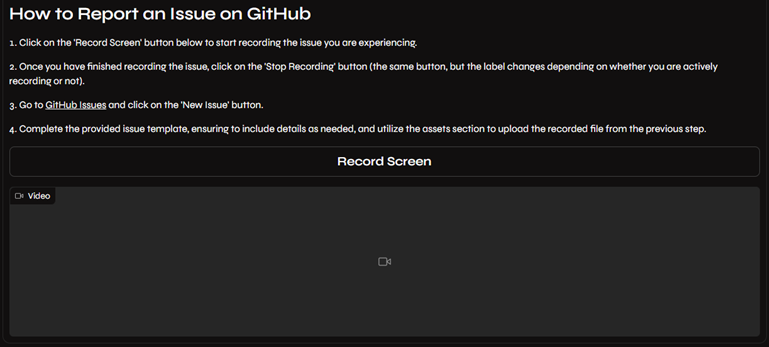
Section titled “Method 2: Built-in Bug Reporter”You can also use Applio’s built-in bug reporter.
Common Errors and Solutions
Section titled “Common Errors and Solutions”Installation and Dependency Errors
Section titled “Installation and Dependency Errors”- Miniconda Download Fails: If the automatic download of Miniconda fails, you can download and install it manually.
- Conda “Wheels” Errors: This usually means that the Visual Studio Build Tools are not installed correctly. The Applio installer should handle this automatically, but you may need to install them manually.
- TensorBoard or Dependency Errors: These errors usually indicate that the dependencies were not installed correctly. Make sure you are using the latest version of the installer and that your system meets the installation requirements.
Installation Requirements Checklist
Section titled “Installation Requirements Checklist”- Path Issues: Did you install Applio in a directory with spaces or special characters in the path (e.g.,
C:\Program Files\Applio)? If so, please reinstall it in a simple path likeC:\Applio. - Antivirus/Firewall: Did you have your antivirus or firewall enabled during installation? These can sometimes interfere with the installation process. Try reinstalling with them temporarily disabled.
- Administrator Privileges: Did you run the
run-applio.batfile with administrator privileges? If so, try running it normally, without administrator rights.
Runtime Errors
Section titled “Runtime Errors”- FFmpeg and UTF-8 Errors: These errors are often caused by special characters in file paths or filenames. Make sure all your file and folder names use standard ASCII characters.
- Connection Issues: If you can’t connect to the Applio interface, make sure the console window is running and that your firewall is not blocking the connection.
- Proxy Issues: If you’re using a system-wide proxy, try disabling it and then refreshing the Applio interface.
- GPU Memory Issues: If you run out of GPU memory during training, try reducing the Batch Size. If it happens during inference, you may need to adjust your settings in the
config.pyfile. - CPU Processing Issues: If your CPU is struggling, try reducing the Number of CPU threads in the training settings. You can also pre-process your dataset into shorter audio clips.